Elmhurst, Queens · on Broadway since 2001
Powered by Airalo — the world's largest travel eSIM marketplaceHow it works
Land connected — Google, WhatsApp and Gmail just work, plus plans for 200+ destinations. Sold by a real store at 82-72 Broadway, Elmhurst, Queens — the same counter also does phone and computer repair and prepaid plans. English and Chinese.
Buy online — delivered in minutes
Free to look up — sign up for alerts
Enter an address to see its violations on record with the NYC Department of Buildings (DOB), ECB / OATH and HPD.
Note: a paid fine is not a closed violation — 189,799 violations citywide have a $0 balance and are still open.
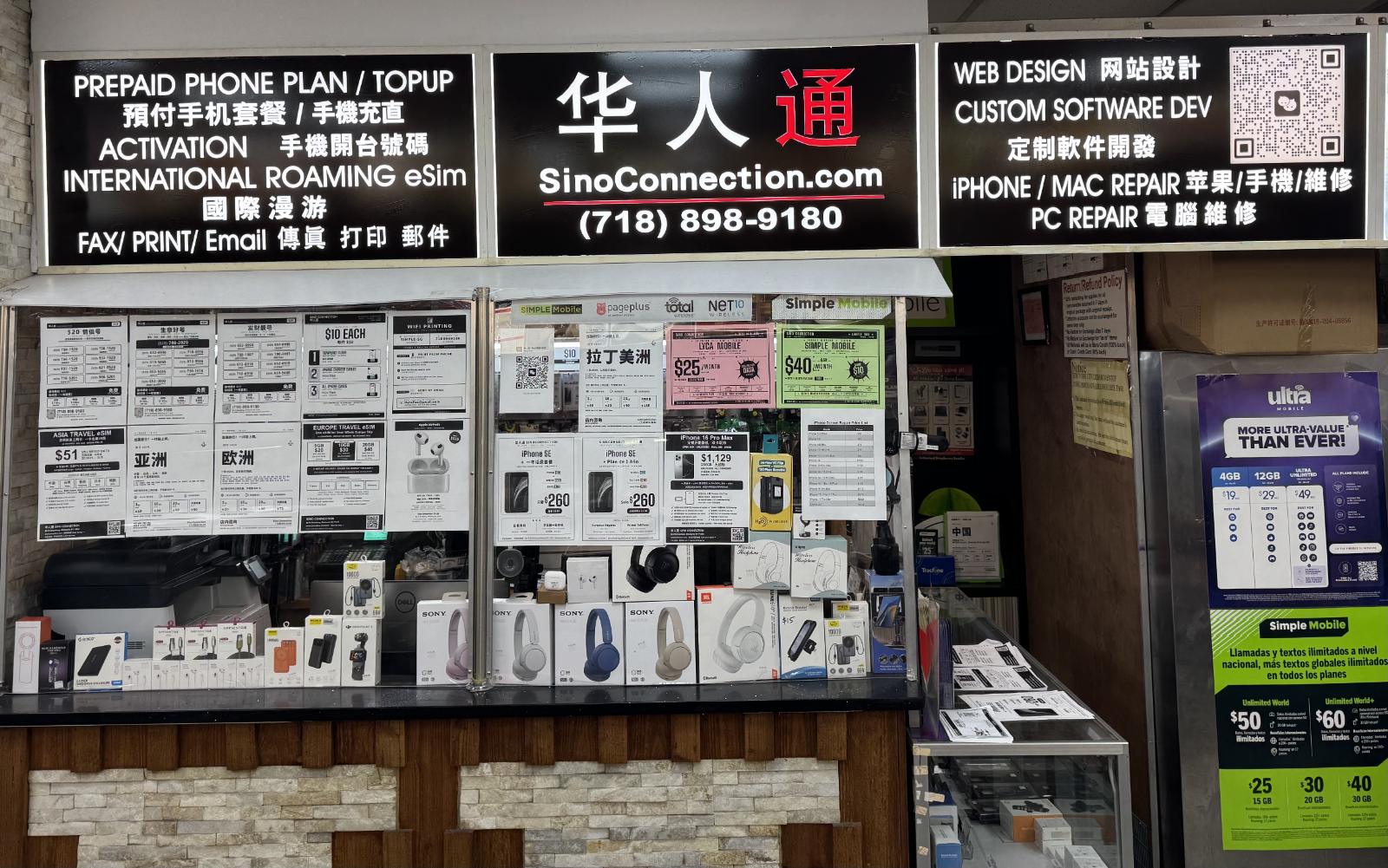
A real storefront on Broadway in Elmhurst — same owner on this street since 2001
Same owner, same street
Connected on arrival
Sign up for ticket alerts
Mon–Sat, in person
Google reviews
“We used SinoConnection travel eSIMs for our two-week trip through Taiwan, Hong Kong, and Shenzhen. We purchased two eSIMs — one for my wife and one for me — and the entire experience was seamless.”
“Grabbed a SinoConnection travel eSIM for 2 weeks across Taiwan, Hong Kong, and Japan. Super easy — picked the eSIM in my iPhone's cellular settings, restarted, and boom, connected. Zero hassle the whole trip. Highly recommend!”
“Used this eSIM in Japan for 2 weeks and it was so good. T-Mobile wanted to charge us a ton for roaming and their free data is super slow, but this was cheaper AND fast. Set it up before we left and it just turned on when we landed.”
Scan to add us on WeChat
Manage your eSIMs and view orders anytime
82-72 Broadway, Elmhurst, NY 11373
Mon - Sat 10:30AM - 6:00PM
Travel eSIM
A travel eSIM only works on a carrier-unlocked phone. On iPhone, open Settings → General → About and check “Carrier Lock” — it should say “No SIM restrictions”.
Three things that trip up most people
You need two things to both be true: (1) your phone is carrier-unlocked, and (2) it supports eSIM. Unlocked — on iPhone, open Settings → General → About and check "Carrier Lock"; it should say "No SIM restrictions". If it says your phone is locked, ask your carrier (AT&T, T-Mobile, Verizon, etc.) to unlock it before you travel. eSIM support — most phones from 2018 onward: iPhone XS or later (US iPhone 14 and later is eSIM-only), Pixel 3+, Samsung Galaxy S20+, recent Motorola/OnePlus. Look for an EID in Settings → About — if you see one, your phone supports eSIM. Note: iPhones sold in mainland China have a physical SIM tray and do NOT support eSIM. Run the quick 2-step check below to confirm both.
For MOST plans: install before you fly, activate at your destination. Here's the key thing to understand — installing and activating are two separate steps, and only activation starts your plan's clock: • Installing just loads the eSIM onto your phone over Wi-Fi at home. This does NOT use any data and does NOT start your validity period. • Activation — and the countdown of your plan's duration — happens automatically the first time the eSIM connects to a network at your destination. That first connection abroad is the moment your days begin counting, not the moment you install. So installing early costs you nothing. That's why we say install before you fly: get the eSIM loaded at home while you have reliable Wi-Fi, then simply arrive, turn the line on, and the clock starts fresh on day one. Don't wait until you land to install — airport Wi-Fi can be unreliable for QR-code setup. 📍 Going to China? Installing before departure is essential, not just convenient. Once you're behind the Great Firewall, Gmail and the one-tap install are blocked and your receipt/QR can be hard to reach — so set it up at home (or before takeoff) and it'll be ready to switch on the moment you land. Installing early won't waste a single day, because the countdown only begins when you connect in China. EXCEPTION: A few plans (marked with a red 'Install starts clock' badge on the plan page) begin counting validity the moment you install — even before connecting to a network. For those, wait until you arrive at your destination before installing. See the next question for details.
Open the email/link we sent with your eSIM. On iOS 17.4 or later, tap the 'Install eSIM' button — it opens Settings and installs in one tap. On older iOS: Settings → Cellular → Add eSIM → Use QR Code → scan the QR. Follow prompts to label the plan (e.g., 'Japan trip') and confirm.
Common causes: (1) You're scanning with the wrong app — use your phone's CAMERA app or the eSIM install flow in Settings, not WeChat or another scanner. (2) The QR was already used — eSIMs install once per device. Contact us if you need a replacement. (3) Weak signal — install on a strong Wi-Fi connection. 📍 Already in China? China's firewall (the Great Firewall) blocks US services like Gmail and often breaks the eSIM one-tap install, so the QR can scan with no result. If you're already in China on Wi-Fi, install using Manual Entry instead: on the Add eSIM screen choose Enter Details Manually and type in the SM-DP+ address and activation code from your receipt email. This bypasses the blocked one-tap install so your eSIM installs and connects. Watch the short video below for the step-by-step. 💡 Tip: before you fly, screenshot or write down your SM-DP+ address and activation code (both are in your receipt email) — that way you'll still have them even if Gmail is blocked once you're in China.
Try in this order: (1) Turn Data Roaming ON for the eSIM line — this is required even though it sounds expensive (it's free with the eSIM). (2) Set the eSIM as your 'Cellular Data' line in Settings. (3) Toggle Airplane Mode on then off. (4) Manually select a network: Settings → Cellular → Network Selection → turn off Automatic → pick a carrier. (5) Restart your phone.
eSIMs can be refunded within 14 days of purchase if they have not been installed (never activated, no data used). Once installed, or after 14 days, they are non-refundable; top-ups are also non-refundable. If an eSIM is defective (fails to install, or no signal at the destination), submit a request and we'll review it manually. Email support@sinoconnection.com with your order ID. See our full refund policy at /refunds.
Still have questions? support@sinoconnection.com